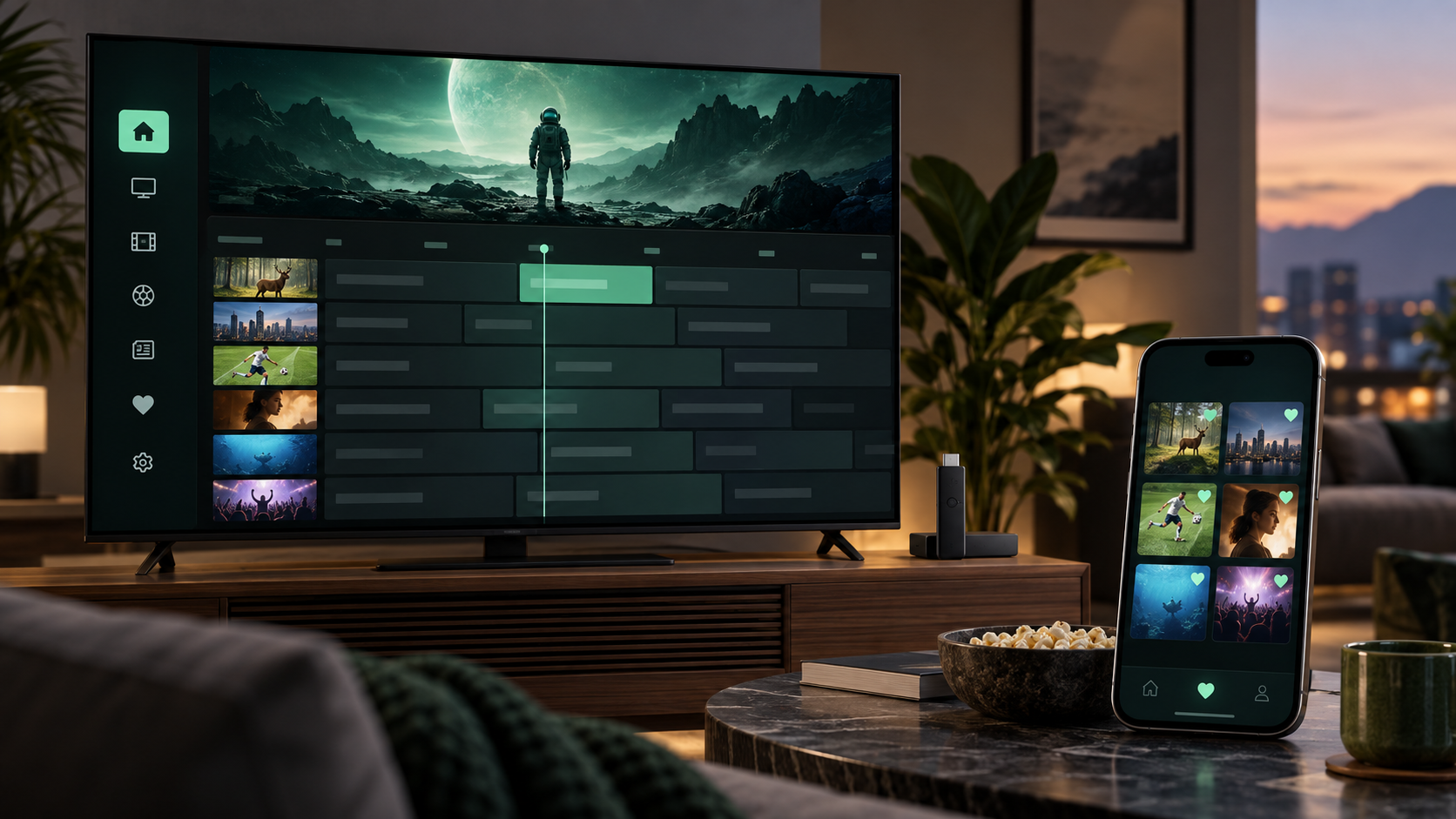

Favorites put the channels, movies, and series you return to most in one easy-to-find place. On mobile, you can favorite an item in two ways: manage several items from Content management, or tap the heart while browsing.
Option 1: Manage favorites from Settings
This is the best route when you want to organize more than one item at a time.
- Open TV, Movies, or Series.
- Tap the gear in the upper-right corner, then choose Content management.
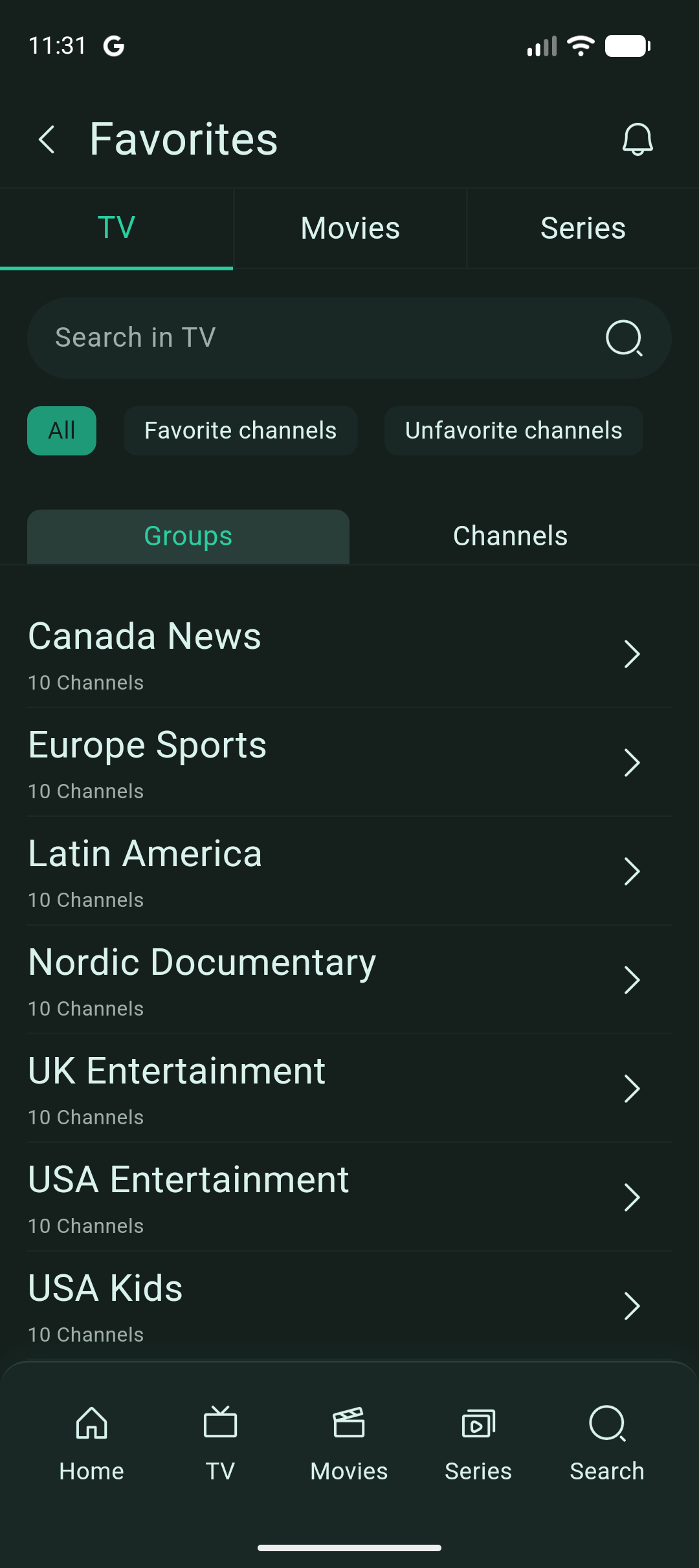
- Tap Favorites and select the media type you want to organize.
- Choose Groups to open a category, or switch to Channels to find an item directly.
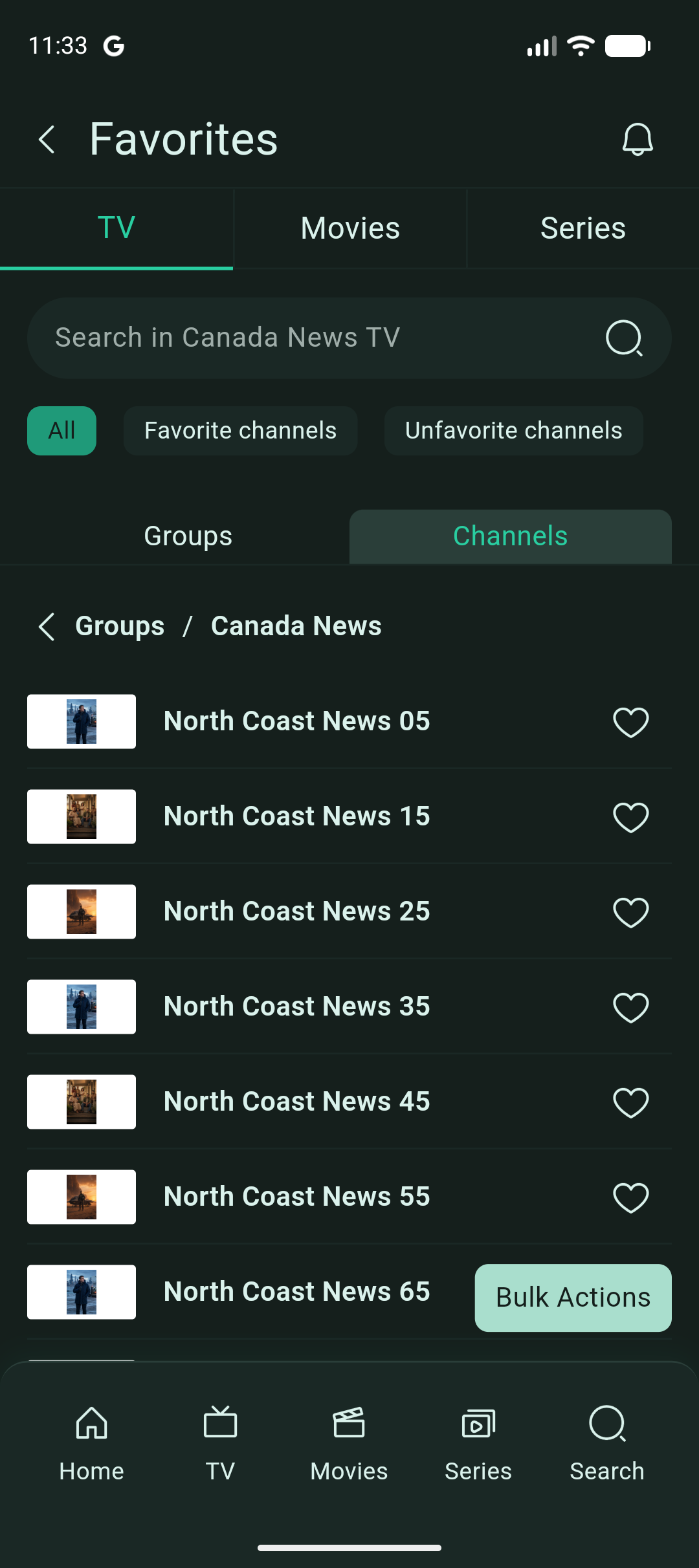
- Tap the heart beside an item to favorite it. Use Favorite channels and Unfavorite channels to review your list, and Bulk Actions when you are managing several items.
Once you open a group, each item has its own favorite control. This makes it easy to build a shortlist without leaving the manager.
Option 2: Tap the heart while you browse
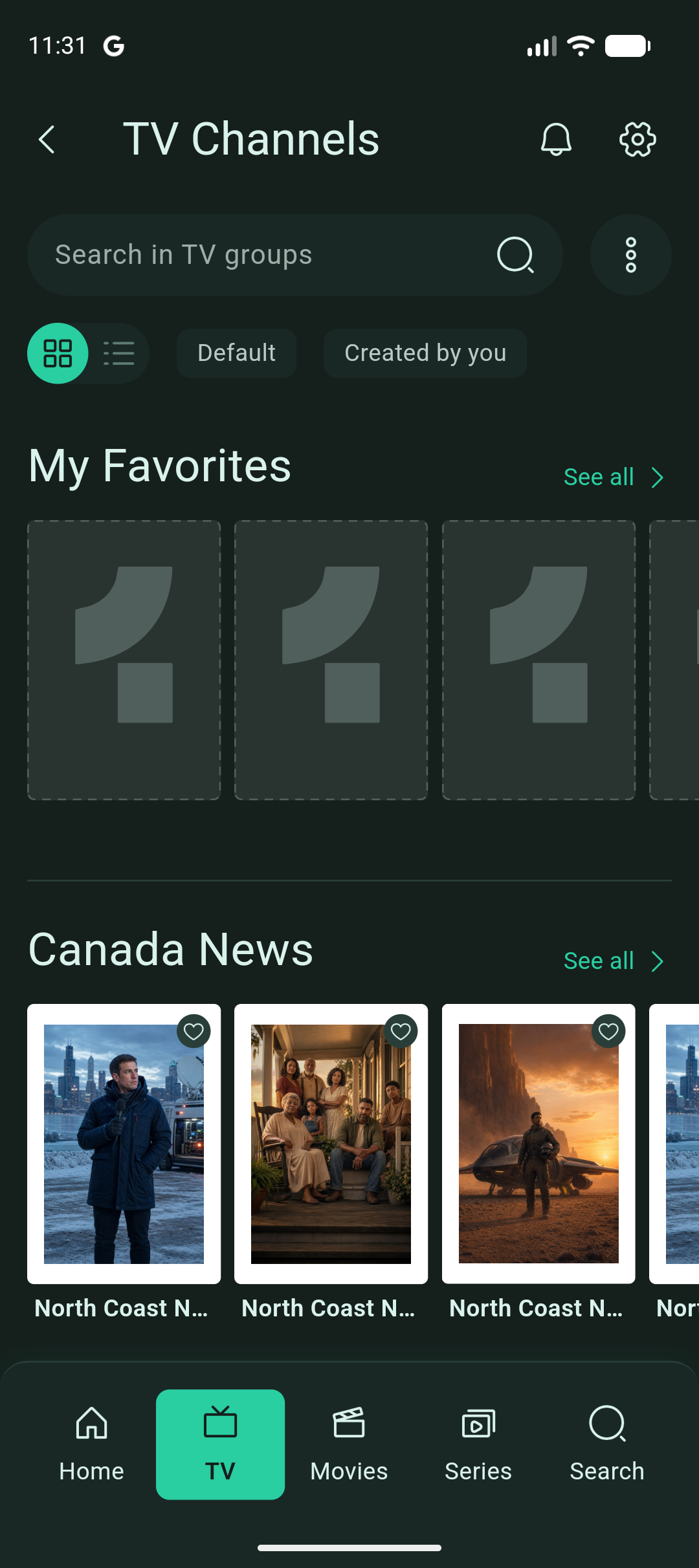
For the quick, in-the-moment option, look for the heart on an item card or its page. Tap it once to add the item to your favorites; tap it again whenever you want to remove it. The heart is available across the relevant TV, Movies, and Series browsing pages, so you can favorite something as soon as you find it.
Find your favorites
Your favorites appear in My Favorites on the relevant browsing screen. Select See all when you want the full list, or return to Settings → Content management → Favorites to make larger changes.