OneDrop is built to keep your viewing setup simple: bring the playlist you already use, then make it feel at home on your screen.
Start with your playlist
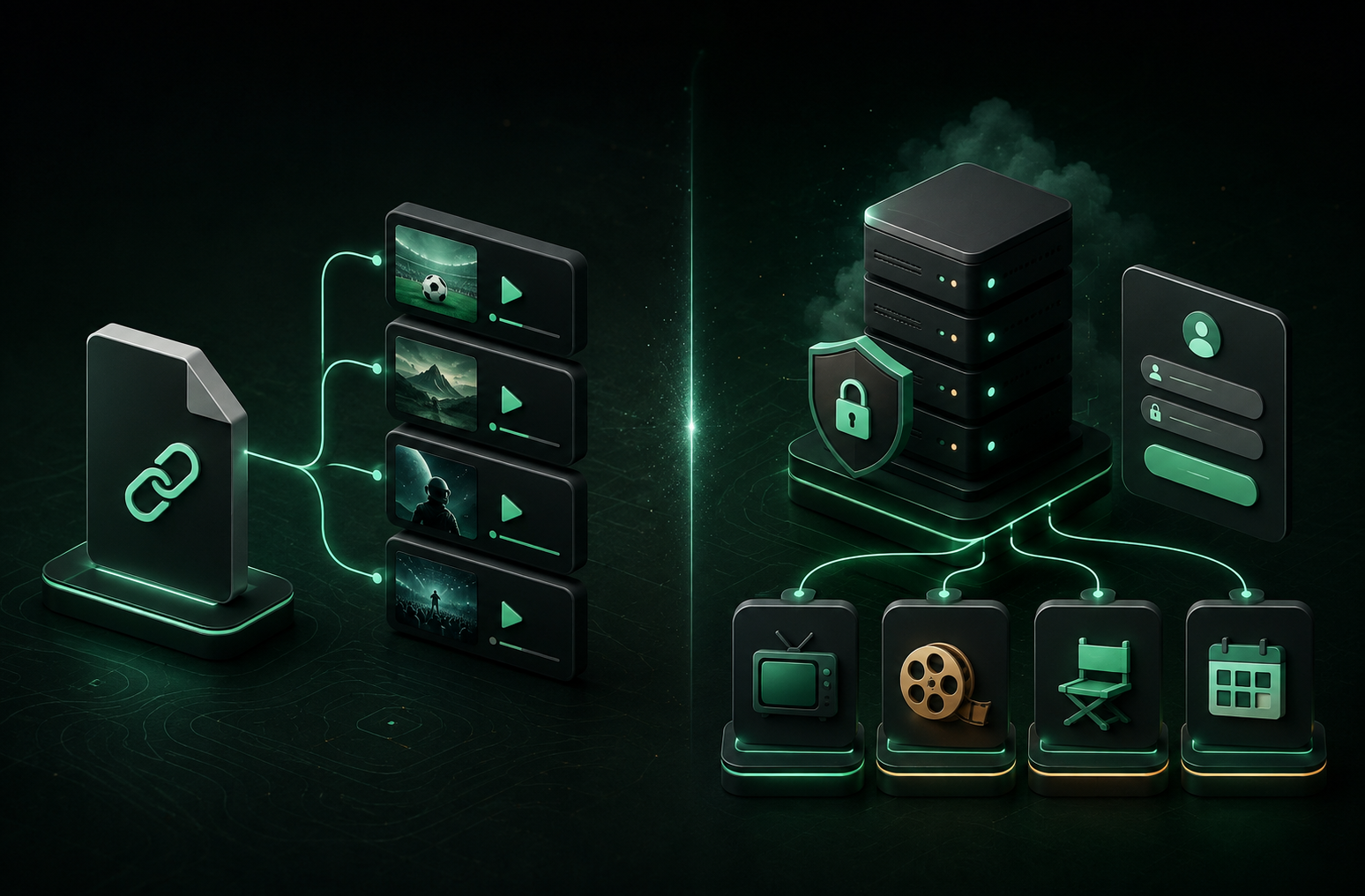
From the playlist setup screen, choose the format your provider gave you:
- M3U playlist — paste the playlist URL supplied by your provider.
- Xtream account — enter your provider URL, username, and password.
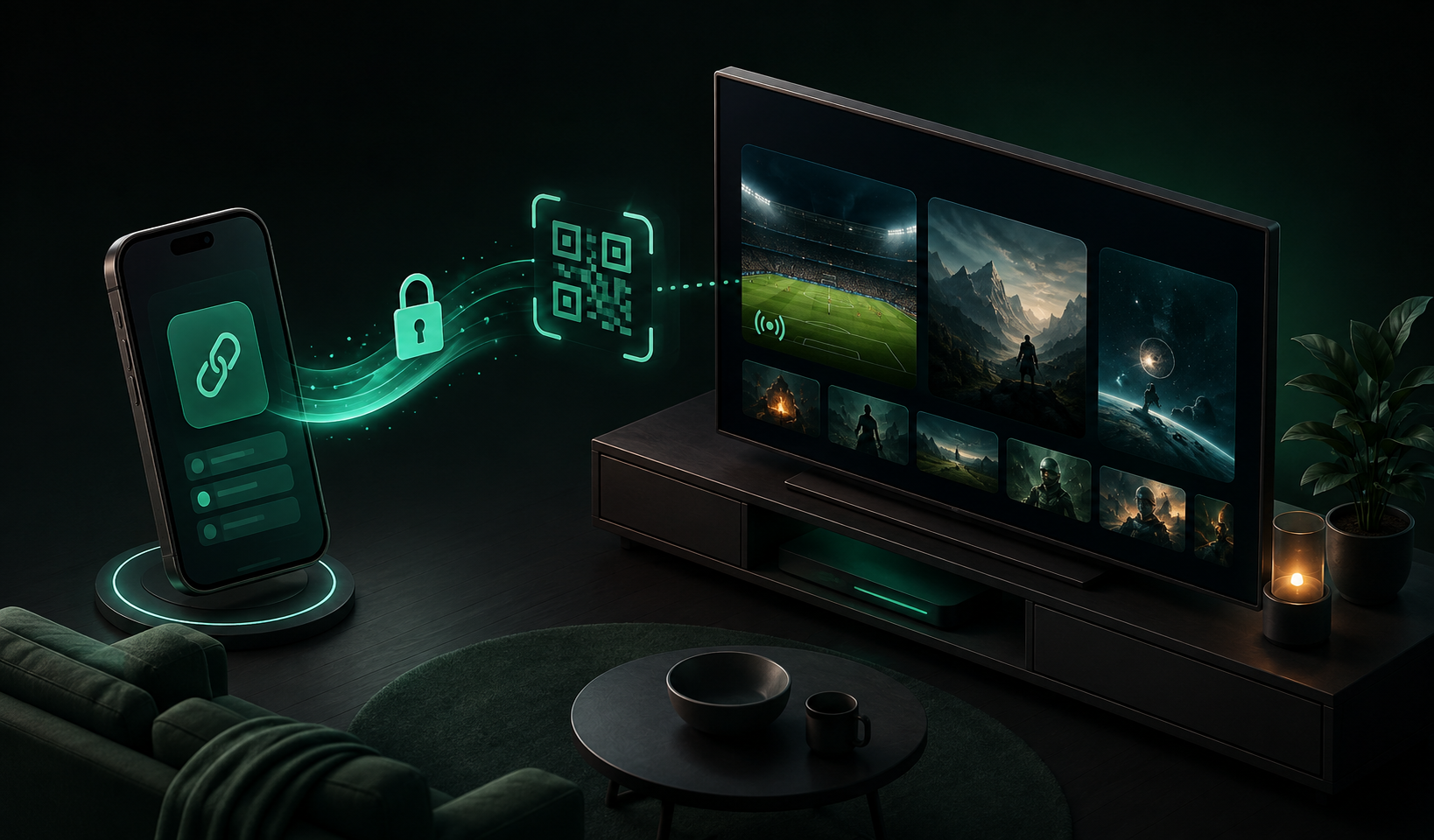
On a TV, you can also use the QR option. Scan the code with your phone, enter the details there, and OneDrop will securely send the playlist to your TV.
Let OneDrop load your library
After you save the playlist, OneDrop imports the available live channels, movies, and series. The first load can take a moment for larger libraries; keep the app open until it finishes.
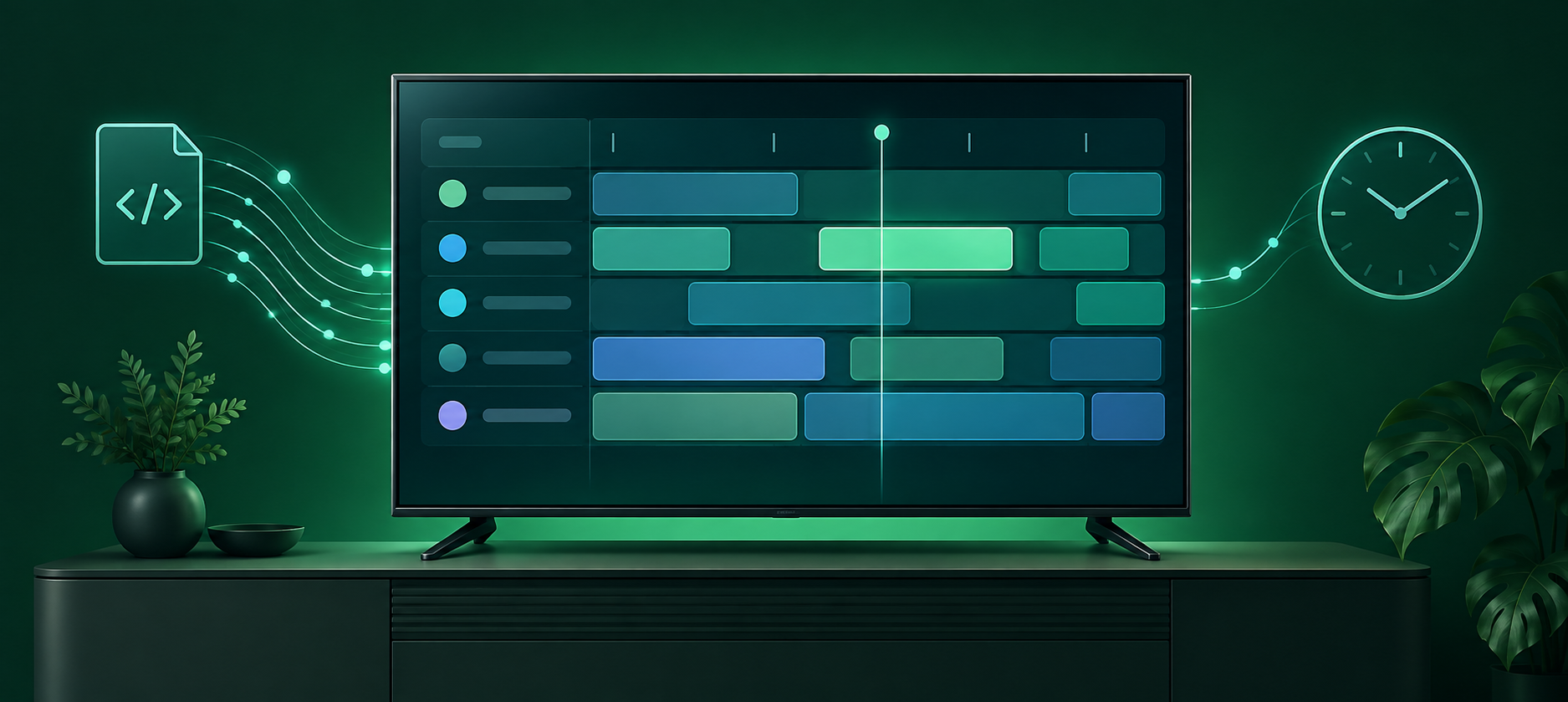
Once it is ready, browse by group, search for something specific, or open the program guide to see what is on now and next.
Make it yours
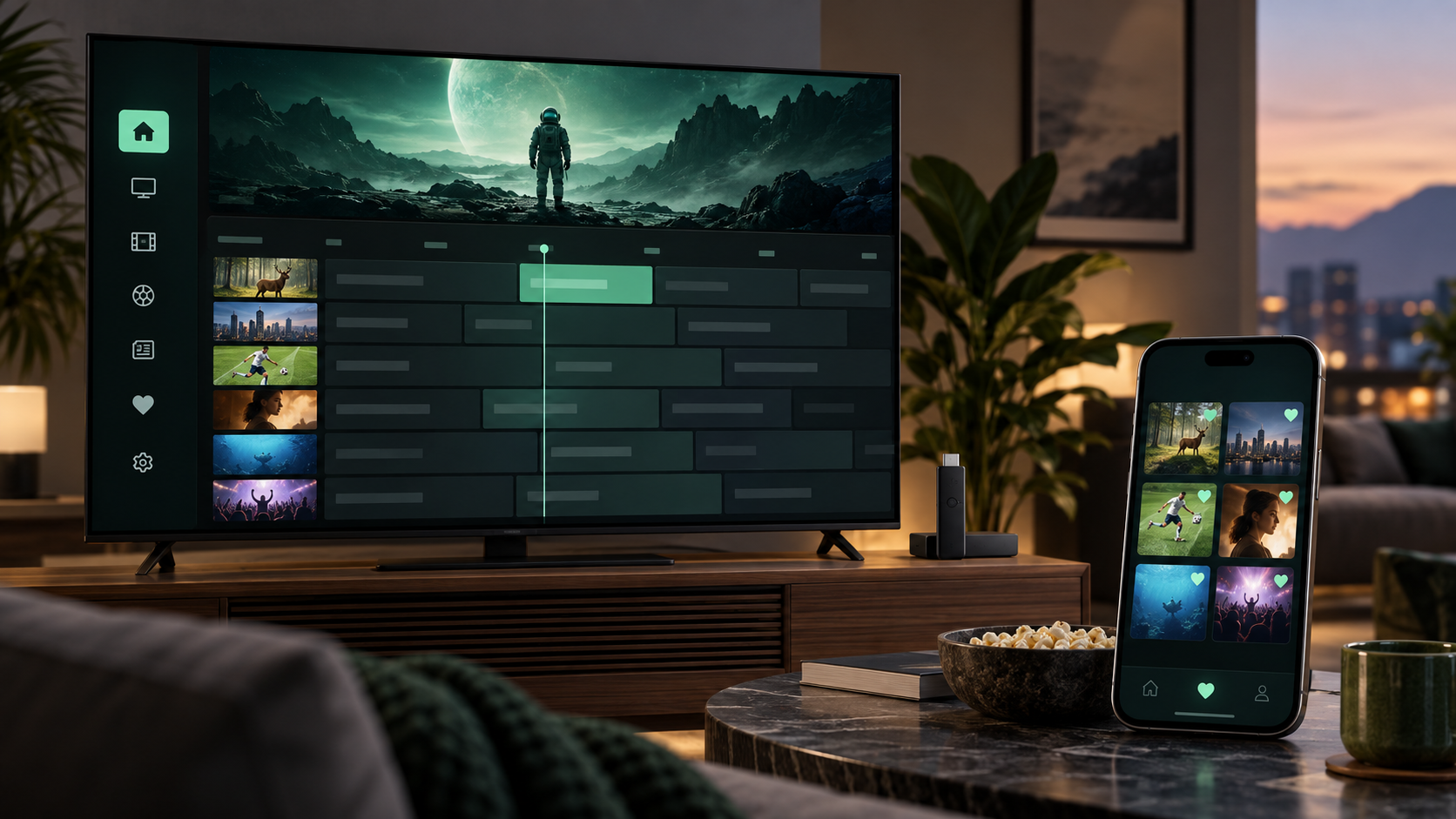
Use favorites for the channels you return to most. Your playlist stays yours: OneDrop is a player, so playlist access and content are provided by the service you choose.
Need to update your provider details later? Open playlist settings and edit the existing playlist. OneDrop keeps the same playlist identity while refreshing the catalog.